BlastAccess: Secure Remote Desktop Connectivity in 5 Minutes
If your business requires tightly managed remote desktop connectivity with session recording for remote access, BlastAccess delivers this functionality with high performance. Leveraging the same phishing-resistant authentication protection as the BlastShield client, BlastAccess eliminates the weaknesses of PAM and web-based RDP solutions by removing open ports and preventing browser hijacking and password theft. Session recording streams desktop activity to a storage system, providing security, forensics, and audit logging for all remote maintenance activities.
Learn more: https://www.blastwave.com/blastshield
Blast Shield secure remote access from ground zero nothing to full implementation in under five minutes. Well, let's go ahead and add blast access remote desktop. Can we do it? Think we can. I'm going to start with an unregistered user link sent to me from Blastwave. Okay, let's start the clock. I'll paste that user link right in here to this browser window. It's going to give me the opportunity to register that user using my blast shield authenticator. There it goes. Uh, would you like to register? Yes, I would. That name's just fine. And successful registration. I now have a user in the blast shield system. Didn't have one a moment ago. Now I've got one. Now I also need a client to be able to get access to the orchestrator. The orchestrator is where I'm going to administer this system. So, I'm going to install this blast shield client. Click install. It's going to ask me for my password to get that installed on this workstation. So, it's going to go through its little installation routine. There it is. Close that. I now have a client and I have a user. I'm going to use the mobile app again to authenticate to Blast Shield. Take a shot of that QR code. That's a handshake code right there in the client. It doesn't come across the wire. There's that Joe Baxter network we just registered. Face ID on the iPhone. Android works the same way. I'm now connected. But since we're zero trust deny by default to get to the administrative piece, that's the orchestrator. I have to log in again. Here we are. I'm at the orchestrator. Now, I want to create some remote access to this Windows workstation right here. Now, I can do that in a number of different ways. Let's just go ahead and make it easy here. We're going to add an agent to this device. New agent's fine. Let's just call it new agent one. And we're going to save and download that installation. Just basically copy the Windows installation command. Go over here to this Windows machine. Open a PowerShell prompt. Pop that in there or a command line. It doesn't matter. It's going to configure that blast access. Notice this unregistered box here. Say yes. It's going to go to offline. Just a second. And then in just a moment further, it'll go online right about now. There it goes. Awesome. So now we have an agent online. Now what we need to get to remote access through the blast access remote desktop system is an additional little piece. So we're going to go to the browser. We're going to go to uh support.sup support.blastwave.com and download another little piece of software. This is uh just a little agent that streams that remote uh that video from the desktop. Download that. Let's open that uh little uh application there. This is going to be a little agent that runs that just does the video streaming for blast access. Get it on there. 2 minutes and 11 seconds left. I better hurry. All right, so that's installed. Now, to make this work, I'm going to go ahead and check and see these services uh running on this machine just to make sure that everything's ready and good to go. There we go. Blast access, blast agent, uh blast shield agent. That's great. Now, over here in the orchestrator, I'm going to turn on remote desktops. Save those changes. It says offline, but it'll be online in just a second. It's got to find its way there. And in the meantime, I'm going to go to my users. This is the user that I'm logged in as. Uh, this fast SR. I'm going to make sure that remote access or remote desktop access is available there. Okay, last little step. Going to go to my policies and I'm going to turn on the blast access remote desktop policy. It goes from the remote users to the remote desktops. So that just means I need to get these guys into their right groups. So the blast access users. Let's add a member. We're going to add fast SRRA. Save those changes. Back to my groups. Go to my blast access desktops. Add a member. And I'm going to add that new agent. New agent one. Save changes. Now, since I have all of this stuff set up, 43 seconds remaining. Let's go back to this new agent. There it is. It's online. Now, I can go to my Blast Shield client. Open that up. And now I've got a new button. Now I can launch and go to remote desktops. Log in again. Again, zero trust deny by default. Look, there I've got the new agent. There's my remote desktop. And I'm going to send the uh input control altdelete and log in. That's blast access remote desktops in a nutshell. Now I have full access to this system and I've done it in less than five minutes. That's blast shield blast access secure remote access.
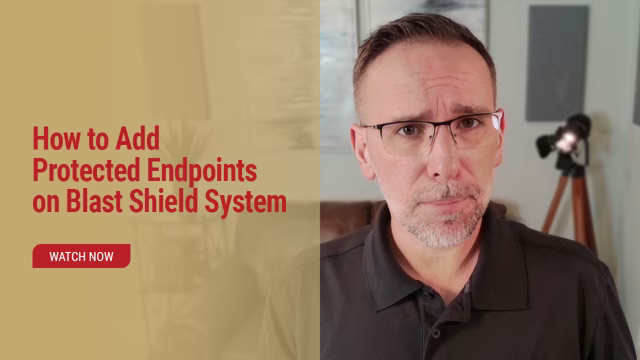





Experience the simplicity of BlastShield to secure your OT network and legacy infrastructure.
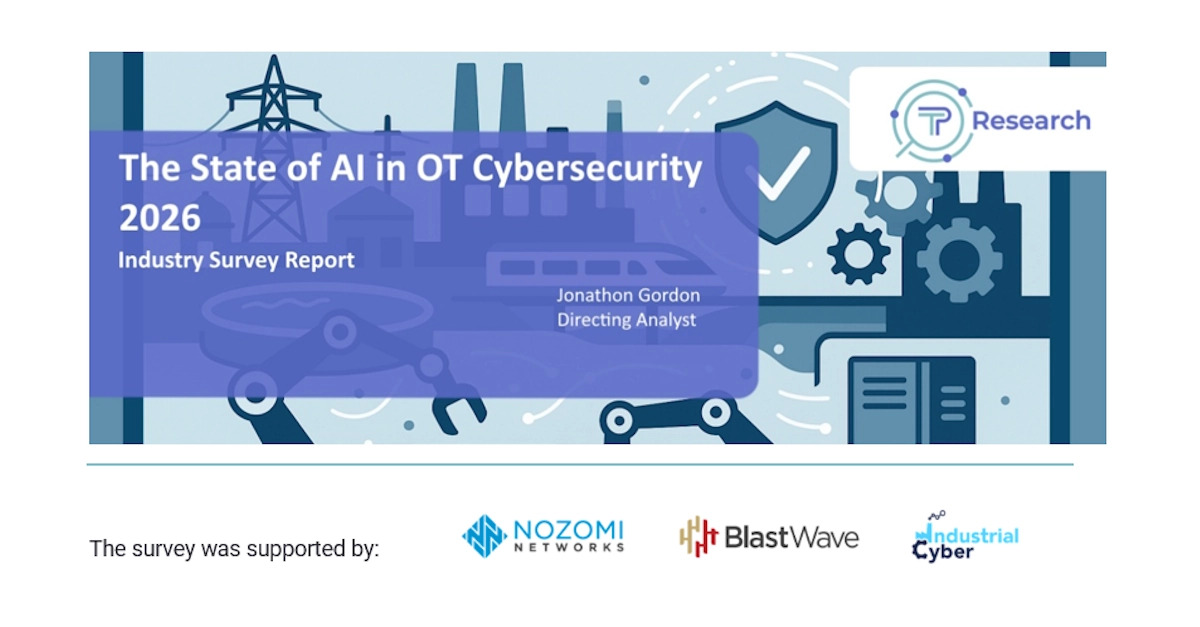
Less than 8% of OT and ICS Companies Have Robust AI Deployment, According to new Nozomi Networks and BlastWave-Sponsored Takepoint Research

.svg)
.svg)