Your Login Should Know Where It Came From: Device Posture in the Age of AI Attacks
In my past life at NSA (where I was trained to be paranoid), one lesson came up again and again: a credential only proves that someone knows a secret. It does not prove who is holding it, what machine they are typing on, or whether that machine is still the one you meant to trust. I had a one-time password built into a calculator that I used to log in to any of my accounts for remote access (the VERY early days of MFA!).
That gap used to be tolerable. It is not anymore. When attackers can automate getting in, every login has to answer more than just "who are you?" It is "who are you, on which device, in what condition, and from where?"
This post is about why device posture is the answer to that question, and how we built it into BlastShield 2.0.
Attackers increasingly log in rather than break in
CrowdStrike's 2026 Global Threat Report puts two numbers side by side that every OT security leader should read together. It records an "89% increase in attacks by AI-enabled adversaries." It also reports that "82% of detections in 2025 were malware-free, up from 51% in 2020."
Malware-free does not mean malware is gone. It means attackers increasingly work with legitimate credentials and built-in tools. A stolen password, a reused token, or an MFA approval tricked out of a tired operator looks, to most access systems, exactly like the real user.
AI makes that worse in a specific way. It lowers the cost of every step that used to take a skilled human: writing a convincing lure, timing a push request for 2 a.m., or trying the same harvested credential against every remote access portal on the internet. Defenses that assume a human adversary who tires and makes mistakes now face one that doesn't.
So you can't trust the credential alone. The device it arrives from must factor into the access decisions.
Step one: bind every login to a device
With the BlastShield Authenticator, authentication is passwordless: a QR challenge, a local biometric, and a key in the phone's device keystore. There is no shared password to steal or circulate.
Starting with BlastShield Client 2.0.2, each login is also tied to the device it comes from. An approval for a known device can't be reused by another machine. The first time a new machine signs in, the Authenticator asks the user a separate question: "Are you setting up BlastShield on a new device of your own right now?" Older clients can still sign in, with an "upgrade recommended" warning, until the user trusts their first device. After that, they are blocked.
That defuses the relay attack, where an attacker starts a login and talks the user into approving it. A new machine triggers the new-device question, with a location check. With administrator approval on, even a user who says yes can't let the attacker in: the attacker's laptop still needs an administrator to approve it before it connects. Without administrator approval, the check makes the attack much harder but does not close it.
Binding answers "which device?" Two more checks build on it: "is that device healthy?" and, when a new device signs in, "does it appear to be near the user's phone?"
Step two: check where a new device is coming from
The classic MFA attack depends on distance. The attacker is somewhere else, starts a login on their own machine, and counts on the user approving it from their phone without thinking.
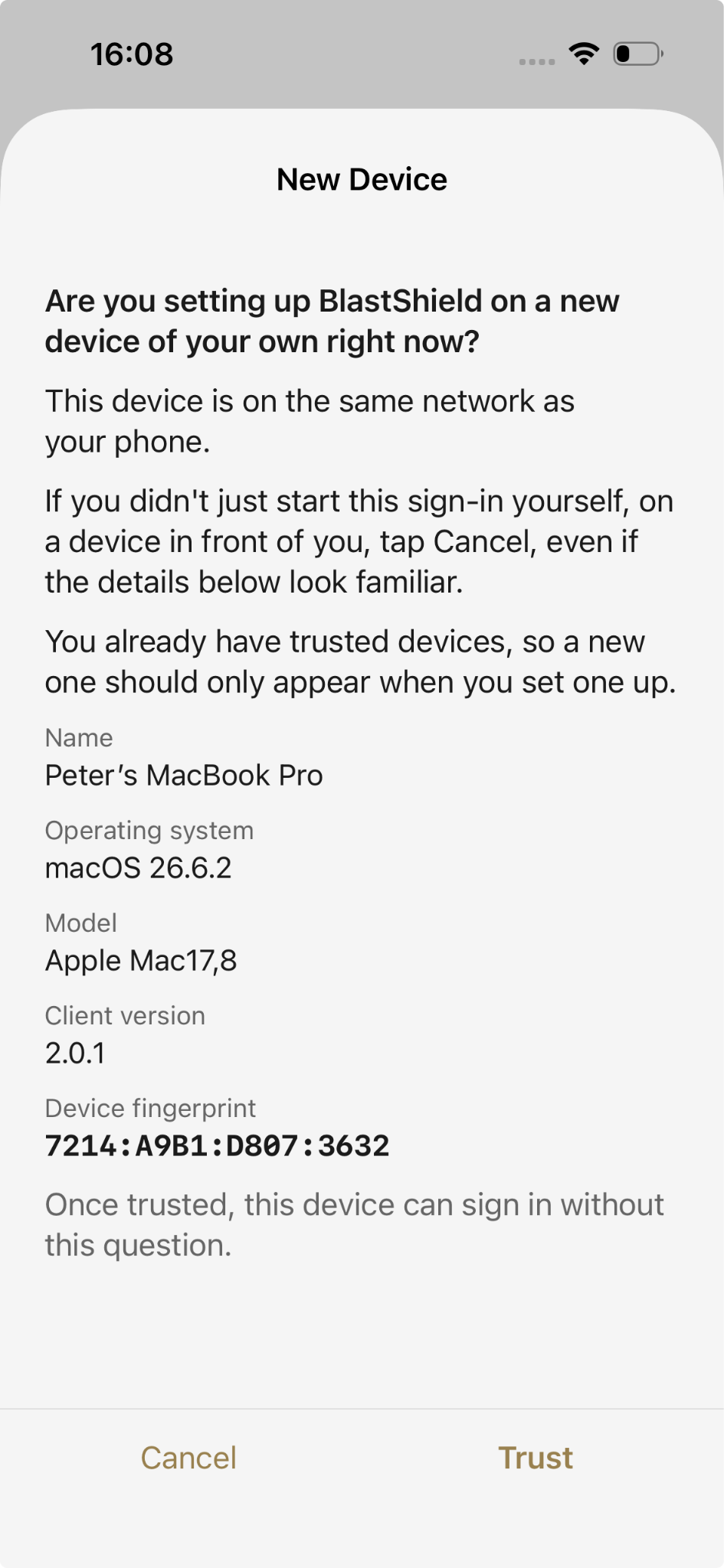
In BlastShield Client 2.0.2, when a user is asked to trust a new device, the Authenticator compares the network the device appears to be on with the network the phone is on using a public IP address lookup. What it shows depends on the result:
- Same public IP: the app says "This device is on the same network as your phone."
- Different public IP, same country: the app shows roughly where the device is. This is the normal case for a phone on mobile data and a laptop on office Wi-Fi, so it is information, not an alarm.
- Different countries: the prompt names both countries, mentions travel or a VPN as possible reasons, asks the user to tap Cancel if neither applies, and changes the button from "Trust" to "Trust anyway."
Here is what the user sees when the new device is on the same network as their phone:
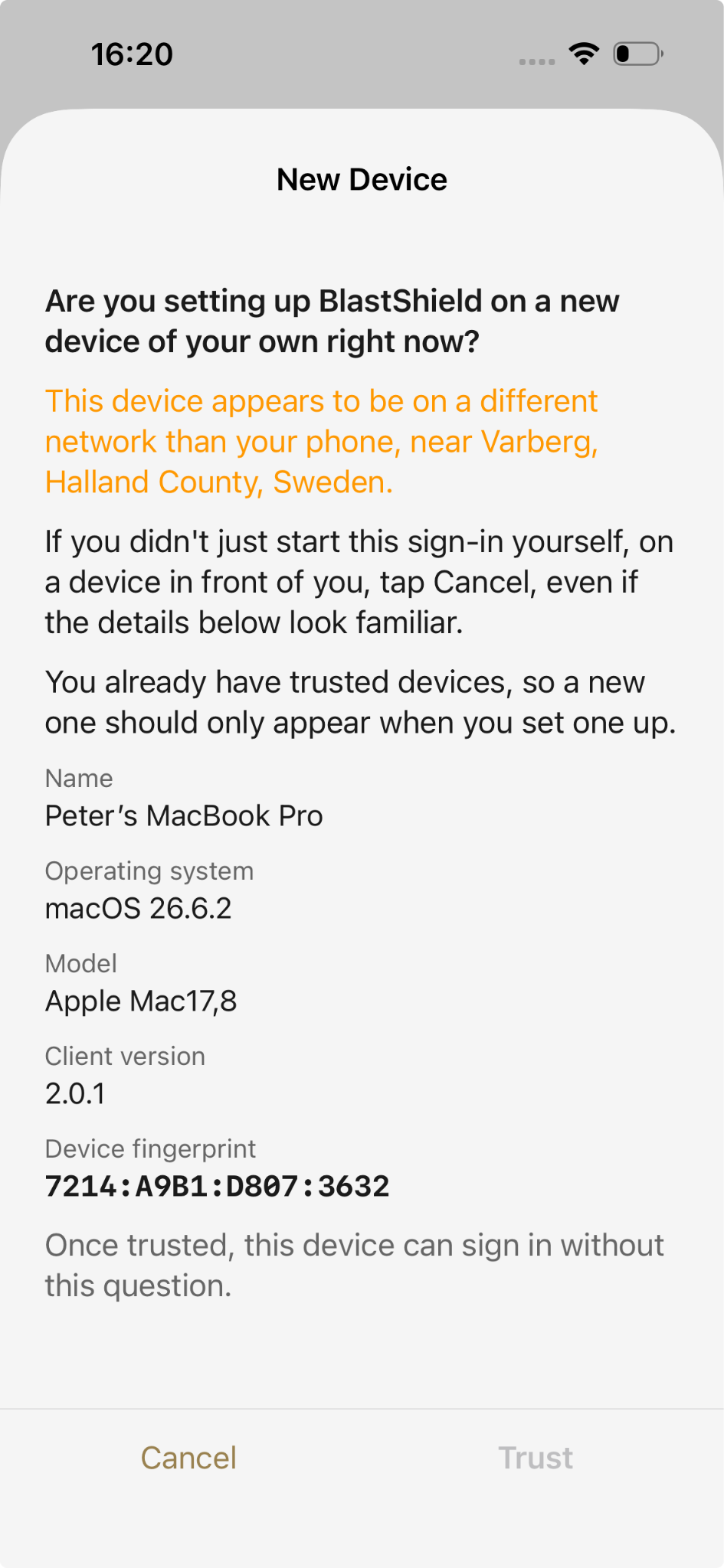
The prompt also lists the device's name, operating system, model, client version, and fingerprint, and it tells the user plainly: "If you didn't just start this sign-in yourself, on a device in front of you, tap Cancel, even if the details below look familiar." A user who already has trusted devices also sees: "You already have trusted devices, so a new one should only appear when you set one up."
That last clause matters. The name, operating system, model, version, and fingerprint are all reported by the device itself, so an attacker can fake every one of them, down to naming a machine "jsmith-laptop." The location line is the one fact the attacker can't simply type in. It is approximate, though: IP lookups are often wrong at the city level, phones on mobile data often show up at the carrier's hub city, and an attacker using a proxy in the user's country only triggers the middle level. That is why administrator approval matters.
Emergency access without a standing hole
Here is the objection every operations leader raises, and they are right to: "If logins are locked to specific devices, what happens at 3 a.m. when the on-call engineer's laptop dies, and the plant needs someone on the HMI?"
A device-bound system that cannot flex in an emergency gets bypassed. Someone props open a VPN, shares a password, or leaves a vendor account active "just in case." That workaround becomes the real attack surface.
BlastShield can handle this with two approvals rather than an exception:
- The user trusts the new device from their own Authenticator, with the location information in front of them.
- With administrator approval turned on, an administrator then approves that specific device before it can connect.
The responder gets onto a replacement machine without changing the firewall. With administrator approval on, a single tap on a phone isn't enough to add a device. Users can have multiple devices, each enrolled separately, and an administrator can approve, reject, or disconnect any of them from the device list once the emergency is over.
That is the difference between emergency access and a standing hole. The path exists, and with administrator approval on, it requires two people to agree.
Step three: notice when a trusted device stops being trustworthy
A device that was healthy at enrollment will not necessarily stay that way. The most dangerous moment is not the first login. It is the Tuesday afternoon, months later, when something on that laptop quietly starts turning off its defenses.
That is what drift looks like from the outside. Antivirus goes inactive or its definitions stop updating. Remote Desktop gets switched on. Secure Boot is disabled. On an Android phone, wireless debugging appears. Any one of these can have an innocent explanation. Each is also exactly the kind of change an intruder makes to work undisturbed.
In BlastShield 2.0, administrators define the security posture a device must meet, and each policy can require it. The checks include:
Posture is monitored continuously. A device that drifts out of compliance loses access to any policy that requires compliance, including in-progress sessions, without an administrator stepping in.
That last part is the point. You do not have to catch the alert, triage it, and race to cut the session. The policy acts on the change. Access stays user-authorized and device-compliant, or it does not stay.
Where this fits
If you work to the DoW OT Zero Trust guidance, posture drift supports activity 1.8.3.OT, Continuous Authentication, as a device-side signal. It complements your session controls rather than replacing them.
More broadly, this is what we mean by Asset-Enforced Zero Trust: the protected asset does not answer unauthorized scans, holds no password to steal, offers no lateral path, and needs no inbound port or concentrator. Device posture is not a new function. It strengthens two of the four BlastShield functions, passwordless MFA and secure remote access, by ensuring the device, as well as the user, meets policy before and during a session.
Attackers coming at your remote access now are faster and more patient than the ones your current controls were designed for. A login bound to a known, healthy device, checked against the location of the user's phone when it was first trusted, stops you from treating a stolen credential as a key.
See it for yourself. Book a BlastShield demo and bring your own scenario: a lost laptop at 3 a.m., a contractor's new tablet, or a workstation that suddenly reports its antivirus is off. We will walk through exactly what happens.
We are also having a webinar on Wednesday on BlastShield 2.0. Register here: https://www.blastwave.com/webinar/blastshield-2-0
Frequently Asked Questions (FAQs)
1. What is device posture in Zero Trust cybersecurity?
Device posture is the security condition of a device requesting network access. It evaluates factors such as operating system version, Secure Boot, antivirus status, and other security settings. In a Zero Trust architecture, device posture helps ensure that both the user and the device meet security requirements before and during access to protected resources.
2. How does BlastShield 2.0 use device posture to secure OT remote access?
BlastShield 2.0 combines passwordless multi-factor authentication (MFA), device binding, location awareness during new-device enrollment, and continuous device posture monitoring. Administrators define security requirements through access policies. If a trusted device falls out of compliance, BlastShield automatically revokes access to resources governed by those policies, including active sessions.
3. How does device binding protect against stolen credentials and MFA relay attacks?
Beginning with BlastShield Client 2.0.2, authentication approvals are bound to the device initiating the login. An approval intended for one device cannot be reused by another. When a new device attempts to sign in, the BlastShield Authenticator asks the user to confirm enrollment. When administrator approval is enabled, the new device must also receive explicit administrator authorization before connecting.
4. How does BlastShield verify the location of a new device?
BlastShield Client 2.0.2 compares the new device's public IP address with the public IP address associated with the user's phone. If they match, the Authenticator indicates that both devices appear to share a network. If they differ, it displays approximate location information. Cross-country differences generate an additional warning. Because IP geolocation is approximate, this information supports informed enrollment decisions rather than serving as definitive proof of physical location.
5. What device security checks does BlastShield 2.0 support?
BlastShield 2.0 supports platform-specific device posture checks, including hardware-backed device keys, Secure Boot, and minimum operating system versions. Windows checks can include User Account Control, Remote Desktop status, antivirus health, and Active Directory domain membership. macOS supports System Integrity Protection checks, while Android supports wireless debugging checks. Administrators determine which requirements apply through access policies.
6. What happens when a trusted device fails a security posture check?
When continuous monitoring detects that a trusted device no longer meets required security conditions, BlastShield automatically removes access to policies requiring compliance. This includes terminating in-progress sessions governed by those policies. Access can resume when the device meets the applicable requirements.
7. Can BlastShield provide emergency OT remote access from a replacement device?
Yes. BlastShield supports enrolling multiple devices for authorized users. When an engineer needs a replacement laptop or other device, the user can initiate enrollment through the BlastShield Authenticator. If administrator approval is enabled, an administrator must separately approve the specific device before it connects. Administrators can subsequently reject or disconnect devices as needed.
8. How does BlastShield 2.0 support OT Zero Trust and continuous authentication?
BlastShield 2.0 supports OT Zero Trust by continuously evaluating device security posture and enforcing access policies throughout a session. This provides a device-side signal relevant to the Department of War's OT Zero Trust activity 1.8.3.OT, Continuous Authentication. Device posture monitoring complements other identity verification, session management, and Zero Trust security controls.
How To: Secure OT Remote Access with Device Posture in BlastShield 2.0
BlastShield 2.0 combines passwordless authentication, device binding, new-device location awareness, administrator approval, and continuous posture monitoring to strengthen Zero Trust access to operational technology (OT) environments.
Step 1: Deploy a supported BlastShield Client
Install BlastShield Client 2.0.2 or later on devices requiring secure OT remote access. This version introduces device-bound authentication and location-aware new-device enrollment. Older clients may temporarily authenticate with an upgrade warning before the user's first device is trusted, but are blocked afterward.
Step 2: Authenticate using the BlastShield Authenticator
Use the BlastShield Authenticator to complete passwordless authentication through a QR challenge, local biometric verification, and a cryptographic key stored in the phone's device keystore. This eliminates the need for a shared login password.
Step 3: Enroll and verify the trusted device
When a new device signs in, review the enrollment prompt in the Authenticator. Confirm that you initiated the login and recognize the device. The prompt provides the device name, operating system, model, client version, and fingerprint. Treat these details as supporting information because they are self-reported by the device.
Step 4: Review device location information
Check the public-IP-based location comparison between the device and your phone. A matching public IP suggests a shared network, while a different IP may reflect separate Wi-Fi and cellular connections, travel, or VPN usage. If the prompt identifies unexpected geographic differences or you did not initiate the login, cancel enrollment.
Step 5: Enable administrator approval for new devices
Configure administrator approval to require separate authorization before newly trusted devices can connect. With this feature enabled, user confirmation alone cannot authorize access from an unfamiliar machine. Administrators can approve or reject specific devices.
Step 6: Define device posture requirements
Establish security posture requirements appropriate to each supported operating system. Depending on the platform, these can include Secure Boot, hardware-backed device keys, current antivirus definitions, operating system versions, Windows RDP restrictions, and Android wireless debugging restrictions. Configure applicable BlastShield access policies to require compliance.
Step 7: Enforce continuous device posture monitoring
Apply posture requirements to the OT resources and remote access policies being protected. BlastShield continuously evaluates the device's security condition. If a device becomes noncompliant, the system automatically revokes access governed by compliance-required policies, including active sessions.
Step 8: Manage replacement devices and emergency access
For emergency maintenance or a failed laptop, enroll a replacement device through the user's Authenticator. When administrator approval is enabled, obtain approval for that specific device before establishing the connection. After the emergency, administrators can review the trusted-device list and disconnect devices that no longer require access.
Step 9: Verify ongoing Zero Trust enforcement
Validate the configured behavior using authorized test scenarios, such as enrolling a replacement laptop or deliberately creating a noncompliant posture condition in a test environment. Confirm that device approvals and posture-based access restrictions operate as intended without disrupting production OT systems.
Result: BlastShield 2.0 enables OT organizations to base remote access decisions on user authentication, trusted device identity, and continuously monitored device security posture rather than credentials alone.







American Water’s cyber incident shows why water utilities need stronger OT isolation to stop IT breaches from threatening critical infrastructure operations and availability.
Explore the complete analysis of 23 OT attacks that defeated firewalls, VPNs, and air gaps.